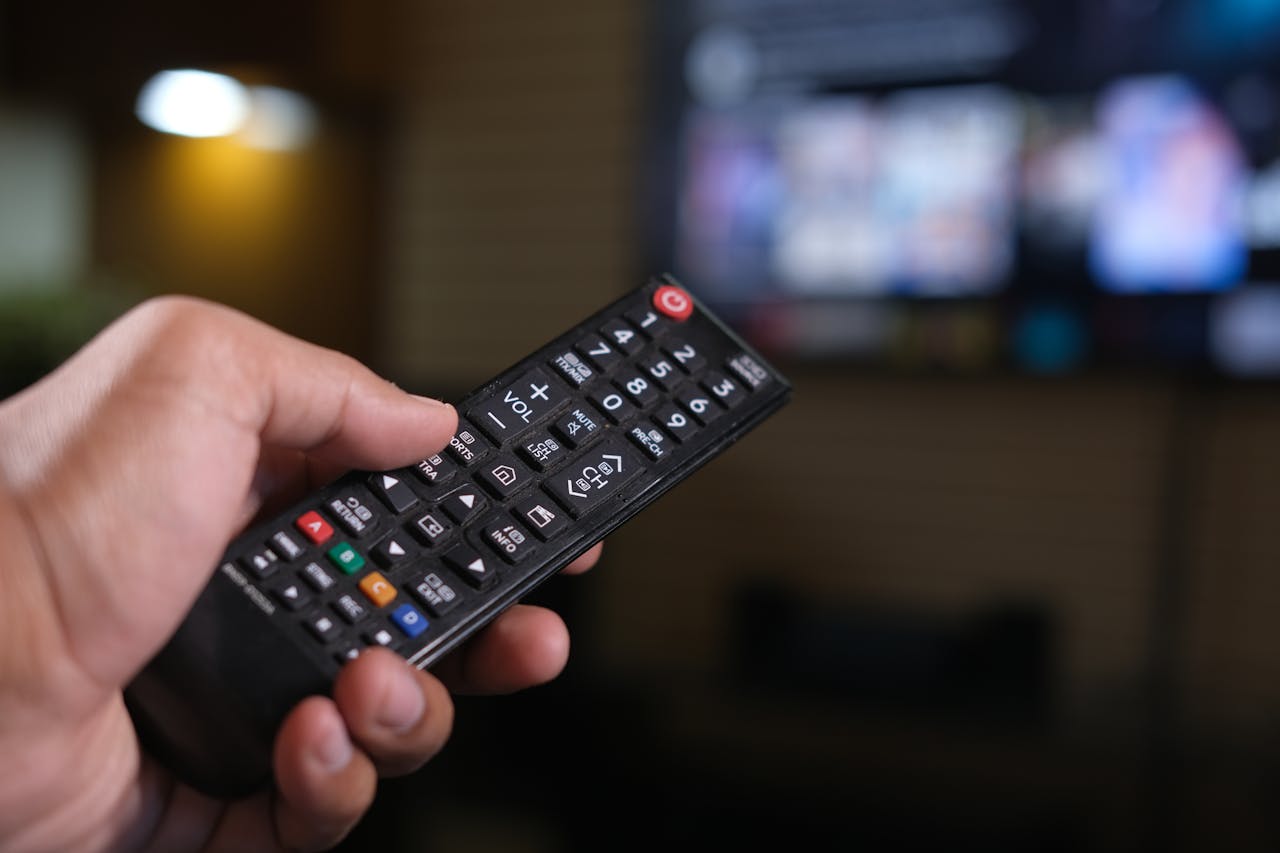
Step 1: Download a TV remote app
Download TVGO, available on both Android and iOS: https://tvgo.carpediemcreations.io/
It supports both Samsung and LG alongside 50+ other brands, and can control multiple TVs from one app.
Step 2: Ensure both your phone and TV are on the same Wi-Fi network
Remote apps connect over Wi-Fi, not Bluetooth. Before starting, confirm:
- Your TV is powered on
- Your phone and TV are connected to the same Wi-Fi network
- Your Wi-Fi signal is reasonably strong
Step 3: Open the app and let it discover your TV
Launch the app and begin the setup process. It will scan your local network and display any compatible TVs it finds. When your Samsung or LG TV appears, tap to connect.
Step 4: Why the app asks you to use your remote — and why that is the problem
When connecting for the first time, your Samsung or LG TV will display an on-screen prompt asking you to accept the connection. This is a security feature built into the TV's operating system — Samsung runs Tizen OS, LG runs webOS — and both require on-screen approval before any remote app can take control.
The catch is obvious: if your remote is lost or broken, you cannot approve anything. You are stuck in a loop where you need a remote to set up the app that is supposed to replace the remote.
This is not a bug in the app. It is a limitation in how Samsung and LG have built their TV software, and until they offer an alternative approval method in a future OS update, every user in this situation hits the same wall.
Step 5: How to get past the approval screen without a remote
There are two practical workarounds, both using the USB ports on the back of your TV:
Option A — Use a USB keyboard
Plug a standard USB keyboard into one of the USB ports on the back or side of your TV. Use it to navigate to the on-screen approval prompt and confirm the connection. Once accepted, unplug the keyboard — you will not need it again.
Option B — Use a USB mouse
A USB mouse works just as well. Both Samsung and LG Smart TVs recognise a connected mouse and allow you to click through on-screen menus. Use it to accept the pairing request, then disconnect it once done.
💡 Tip: The USB ports are usually on the back panel or along one side of the TV. If they are hard to reach, a short USB extension cable makes this much easier.
Step 6: You are connected — use the app as your remote
Once the pairing is accepted, the remote app takes over fully. From this point you can control your Samsung or LG TV directly from your phone — changing channels, adjusting volume, navigating menus, and more — without ever needing the physical remote again.
The bottom line
The remote app works. The frustrating part is a one-time setup hurdle caused by Samsung and LG's TV operating systems, not the app itself. Grab a USB keyboard or mouse, plug it into the back of your TV, approve the connection, and you are done for good.