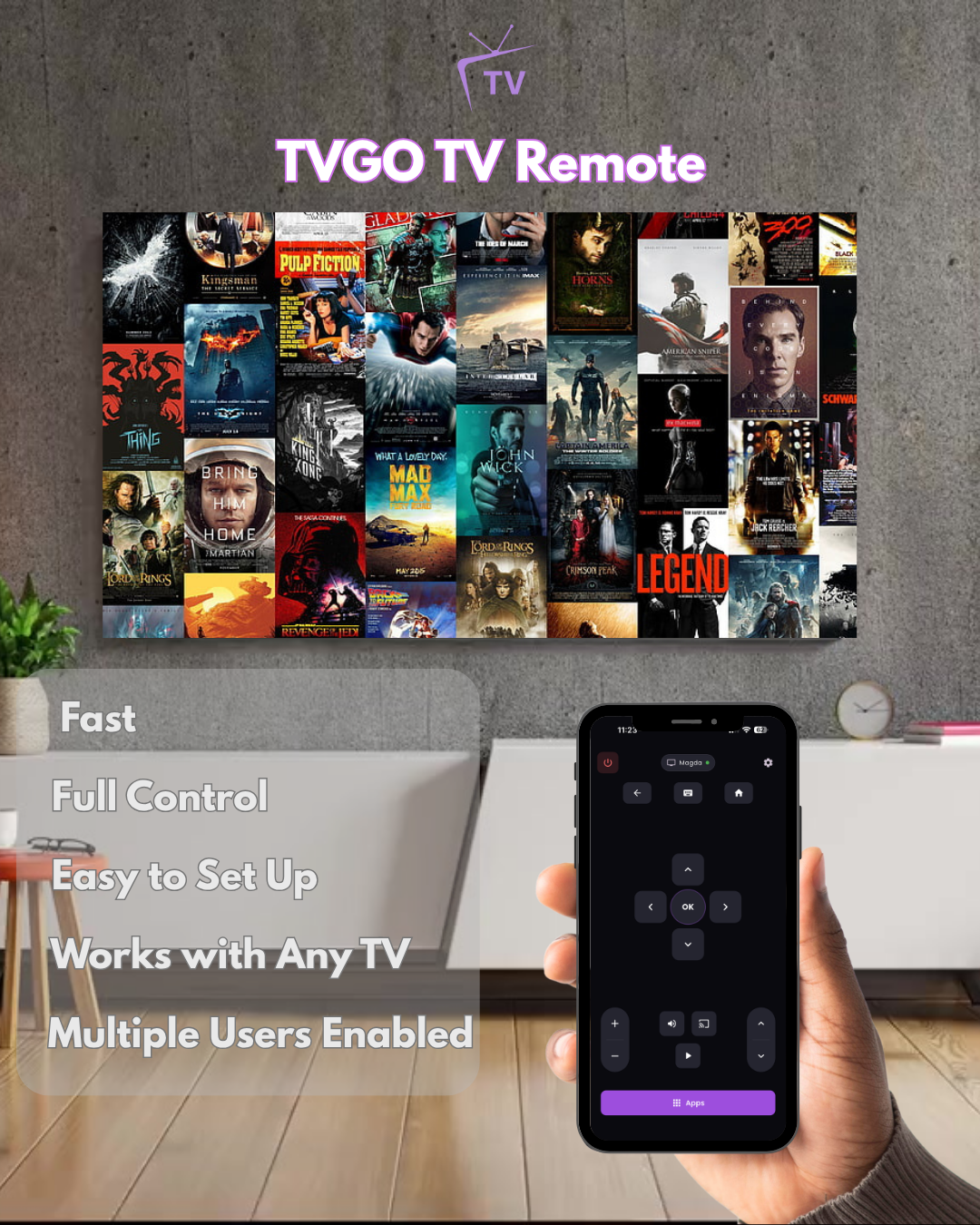
Wondering how to set up a universal remote app without fussing with codes or pointing your phone at the TV? TVGO makes it simple. TVGO connects to your devices over your home Wi-Fi network — no infrared blaster, no line-of-sight, no pairing codes to memorize. As long as your phone and your TV gear are on the same network, you're minutes away from one remote for everything. Here's how to set up TVGO with each type of device, plus fixes for the most common hiccups.
Before You Start: One Network, One Rule
TVGO discovers devices over Wi-Fi. So the golden rule is: your Android phone and your TV, streaming box, or cable box must be on the same home Wi-Fi network. If your router broadcasts separate 2.4GHz and 5GHz names, that's usually fine — just avoid guest networks, which often block devices from seeing each other.
Connecting TVGO to a Smart TV
- Open TVGO and tap to add a device.
- TVGO scans your network and lists compatible TVs it finds.
- Select your TV. Some TVs display an on-screen prompt — accept it, and you're connected.
Troubleshooting: if your TV doesn't appear, make sure it's powered on (not in deep sleep) and check its network settings to confirm it's on the same Wi-Fi as your phone. Restarting the TV often kicks discovery back to life.
Connecting TVGO to a Streaming Box
Roku-style players, Fire TV-style sticks, and Chromecast-style devices are network devices by design, which makes them a natural fit for TVGO. Run the same device scan, pick your streaming box from the list, and approve any confirmation that pops up on your TV screen.
Troubleshooting: streaming sticks sometimes hop to a different network band or an old saved network. Open the stick's network settings and verify it matches your phone's Wi-Fi. If discovery stalls, unplug the stick for ten seconds and rescan.
Connecting TVGO to a Cable or Satellite Box
If your cable or satellite box is network-connected — plugged into your router by Ethernet or joined to your Wi-Fi — TVGO can find it in the same scan. Select it, confirm, and start changing channels from your phone.
Troubleshooting: cable boxes are the most likely device to be offline. Check the box's settings menu for a network status screen. If it shows no connection, connect it to your router first, then rescan in TVGO. Older boxes without any network connection can't be controlled over Wi-Fi.
Once your devices are added, TVGO's built-in live TV guide is right there too — so the same app that changes the channel also tells you what's on.
FAQ
Does TVGO need an IR blaster?
No. TVGO controls devices entirely over Wi-Fi, so it works on any Android phone — no infrared hardware required.
Why can't TVGO find my TV?
Almost always a network mismatch. Confirm your phone and TV are on the same Wi-Fi network (not a guest network), then restart the TV and rescan.
Can TVGO control more than one device?
Yes. Add your smart TV, streaming box, and cable box, and switch between them inside the app.