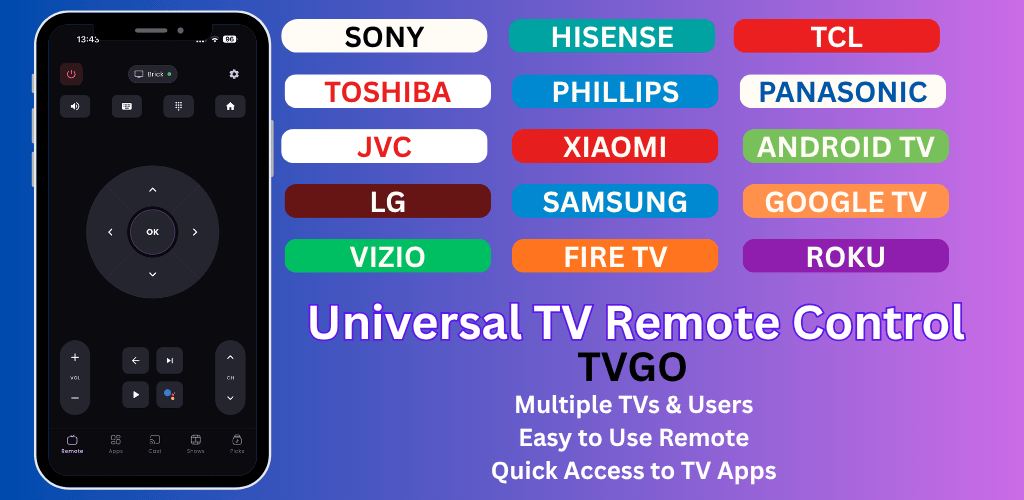
Step 1: Download the TVGO app
TVGO is available on both Android and iOS. Download and install it from: https://tvgo.carpediemcreations.io/
Step 2: Grant Wi-Fi access to the app
TVGO connects to your TV over Wi-Fi, so allow it access to your network when prompted. A strong, stable connection gives the best experience — though the app is designed to handle low-connectivity environments too.
Step 3: Turn on your TV and start onboarding
Open the app and begin the setup process. Make sure your TV is powered on so it is discoverable on the network. TVGO supports multiple TVs simultaneously — great if you have more than one at home — and is compatible with major brands including Samsung, LG, Sony, TCL, Hisense, and 50+ others.
Step 4: Let the app discover your TV
The app will scan your network for compatible TVs. Once your TV appears in the list, tap to connect. If it does not appear, unfortunately that TV model may not be supported.
Step 5: Complete the pairing
Depending on your TV's operating system, one of two things will happen:
- Option A — Code pairing: A code appears on your TV screen. Enter it in the app to confirm the connection.
- Option B — Approval prompt: Your TV will display a prompt asking you to accept the connection on-screen.
💡 Tip: If your original remote is not working and you cannot accept the on-screen prompt, temporarily connect a USB mouse or keyboard to your TV to approve the pairing. It is a one-time step — once connected, you will not need it again.\