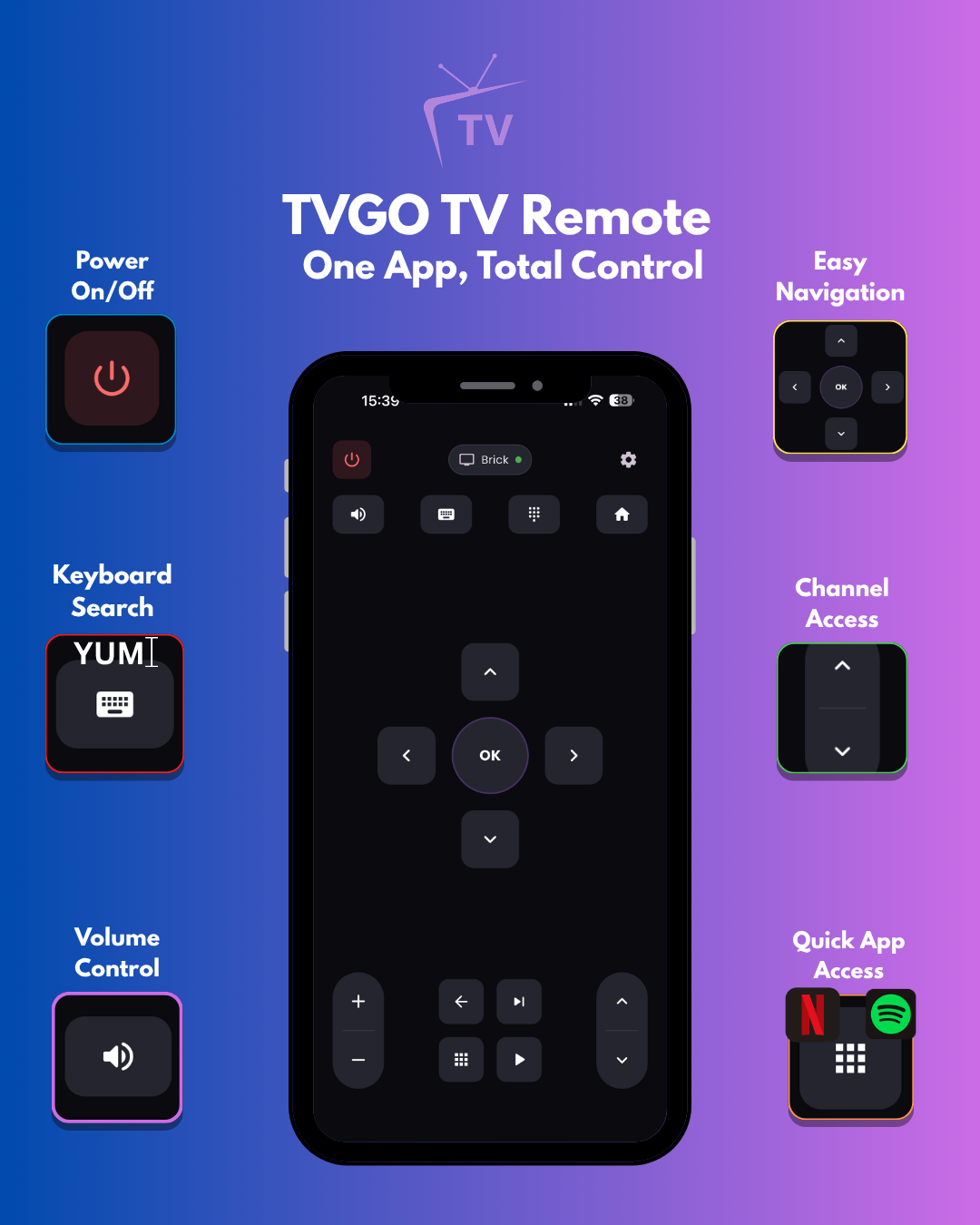
You have downloaded a TV remote app, pointed it at your TV, and nothing happens. Before you give up, work through this checklist ; most connection problems have a simple fix, and this guide covers every one of them.
1. Download TVGO
TVGO is a remote app available on both Android and iOS that connects to over 50 TV brands including Samsung, LG, Sony, TCL, Hisense, Philips, Sharp, and Panasonic; all from one app. Download it here: https://tvgo.carpediemcreations.io/
Once installed, open the app and follow the steps below if you run into any connection issues.
2. Make sure your TV is actually on
Your TV needs to be fully powered on, not in standby or sleep mode, for the app to detect it on the network.
If you do not have a working remote, look for the physical power button on the TV itself. Depending on the model it is usually found:
- In the centre of the bottom bezel (a small joystick-style button on many Samsung and LG models)
- Along the back or underside of the panel
- On the right or left side edge
Press it once to power the TV on fully, then try connecting again.
3. Check that your phone and TV are on the same Wi-Fi network
TVGO communicates with your TV over your local Wi-Fi network. If your phone and TV are on different networks ( even slightly different ones) they cannot see each other. This also means that you need to give permission for TVGO to access your local WIFI for the app to work.
The most common culprit here is Wi-Fi frequency bands. Most modern routers broadcast on two frequencies: 2.4GHz and 5GHz. These appear as separate networks and devices on different bands cannot communicate with each other, even if both are connected to the same router.
What to check:
- Open your phone's Wi-Fi settings and note which network you are connected to
- Go into your TV's network settings and check which network it is on
- Make sure both are on the exact same network name (SSID) — including the same frequency band
If your router uses the same name for both bands, try manually switching one device to match the other. The 2.4GHz band generally has better range and compatibility with Smart TVs.
4. Check your Wi-Fi signal strength
Unlike a physical remote that uses infrared, TVGO relies entirely on your Wi-Fi connection. A weak or unstable signal is one of the most common reasons the app drops or fails to connect.
Signs your Wi-Fi may be the issue:
- The app connects briefly then drops
- Controls are slow or unresponsive
- The app works fine close to the router but not further away
What to do:
- Run a speed test on your phone from the same room as your TV. A free app like Speedtest by Ookla works well. You want at least a stable 5Mbps for reliable remote control
- If the signal is weak, move your router closer, use a Wi-Fi extender, or switch to the 2.4GHz band which carries further than 5GHz
- If the app disconnects during use, simply tap the connect button again; it will re-establish the connection quickly
5. Turn off your VPN
If you have a VPN running on your phone, this is very likely the cause of your connection problem; and it is easy to overlook.
A VPN (Virtual Private Network) reroutes your internet traffic through a server in another location, masking your real IP address. This is great for privacy and streaming geo-restricted content, but it creates a problem for local network communication: your phone appears to be on a completely different network to your TV, even though both are sitting in the same room.
TVGO works by discovering devices on your local network. When a VPN is active, that local discovery is blocked or broken entirely.
Fix: Open your VPN app and disconnect it before launching TVGO.
6. Check that your TV is compatible
Not every TV is supported. If you have worked through all the steps above and still cannot connect, confirm your TV model is on the supported list.
TVGO connects with over 50 TV brands including:
- Samsung
- LG
- Sony
- TCL
- Hisense
- Philips
- Sharp
- Panasonic
- And many more
If your TV does not appear during the discovery scan and you have confirmed it is on, on the same network, and Wi-Fi is strong, that specific model may not yet be supported.
7. The Samsung and LG pairing problem — and how to fix it
If TVGO finds your Samsung or LG TV but cannot complete the connection, you have hit a known limitation in their TV operating systems.
Both Samsung's Tizen OS and LG's webOS require you to approve the remote app connection on the TV screen before it is allowed to take control. This is a security feature — but it creates a painful catch: if your physical remote is lost or broken, you have nothing to approve the connection with.
This is not a fault with TVGO. It is how Samsung and LG have built their TV software, and it affects every third-party remote app equally.
Here is how to get around it:
For Samsung TVs — use a USB mouse or keyboard
Samsung Smart TVs have USB ports, typically on the back panel or along one side. Plug in a standard USB mouse or keyboard and use it to navigate to the approval prompt on screen.
A note on using a mouse: make sure you have a flat, smooth surface nearby — a table, book, or even a magazine — so the mouse can track properly. Once you have accepted the connection, unplug it. You will not need it again.
For LG TVs — use the PIN option first
LG offers an easier alternative that many people miss. In TVGO; there are 2 options: accept from the screen or use PIN. Without the remote, the best option is the PIN Option. The TV will give you a PIN and you will fill it in the remote app and you will be connected.
Still not connecting?
If you have worked through every step above and TVGO still will not connect, try:
- Restarting your TV and your router
- Reinstalling the TVGO app
- Checking for a software update on your TV
- Visiting https://tvgo.carpediemcreations.io/ for support
In most cases, one of the fixes in this guide will get you connected. The Wi-Fi band mismatch and the VPN issue are the two that trip people up most often ; and both take under a minute to resolve.