The remote is gone. Again. Before you take apart every cushion in the house, know that you have at least six ways to control your TV without it. Some will get you through tonight; one turns the phone already in your hand into a permanent replacement. They are listed from the quickest stopgap to the most complete fix, so you can stop at whichever one solves your problem. If you only need the TV on for the next ten minutes, the first option is enough; if this keeps happening, skip to number five.
Almost every TV has a physical power button and basic controls hidden somewhere on the set. Depending on the model, look for:
- a small joystick-style button in the centre of the bottom edge, common on Samsung and LG
- a row of buttons along the back or underside of the panel
- buttons on the left or right side edge
These buttons will usually turn the TV on and off, change the volume and switch inputs. It is clunky for anything more than that, since navigating menus one press at a time is slow, but it gets you from off to on and onto the right input.
2. Use a Voice Assistant
If your TV is linked to Google Assistant or Alexa, through a smart speaker or the TV's own assistant, you can speak basic commands such as turning the TV on, changing the volume or opening an app. It is handy when your hands are full.
Voice control is limited, though. Once you need to scroll through a menu, pick an episode or type a search, voice commands run out of road. It also only works if the assistant was set up and linked to the TV before the remote went missing, so it is a good thing to configure now, while you are thinking about it.
3. Use a Connected Device Through HDMI-CEC
If a streaming box or a game console is plugged into the TV over HDMI, its own controller can often control the TV through a feature called HDMI-CEC. Turning on the box can switch the TV on and select the right input, and the box's remote or controller can adjust the TV's volume.
The feature goes by different names depending on the brand, such as Anynet+ on Samsung and SimpLink on LG, and it may need switching on in the TV's settings. If it is already enabled, this is one of the fastest ways to get watching again without the TV's remote.
4. Try the TV Maker's Own App
Many TV and streaming-device makers offer a companion remote app for their own hardware. If you have one brand of TV and nothing else, that app can stand in for the lost remote.
The drawback shows up as soon as your setup is mixed. A TV from one company and a streaming stick from another means two or three different apps, each with its own layout and setup. None of them tells you what is on TV tonight, either. If you want one app for everything, the next option is the better fit.
5. Turn Your Phone Into a Universal Remote With TVGO
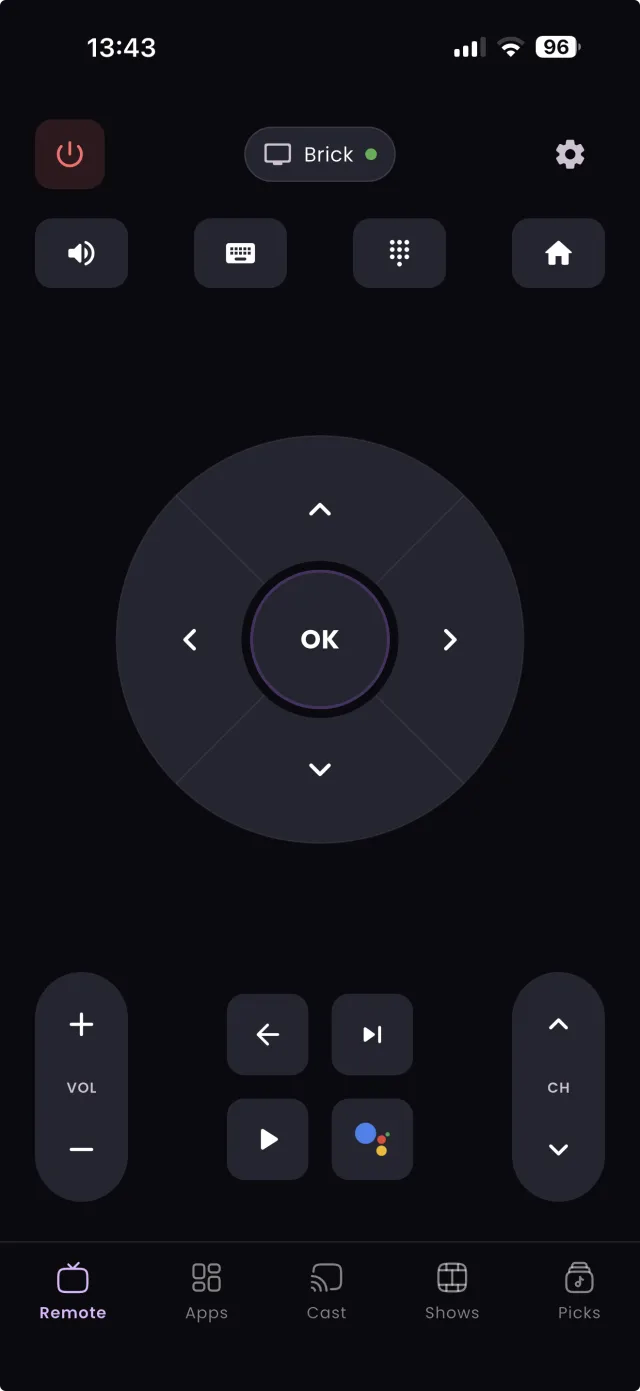
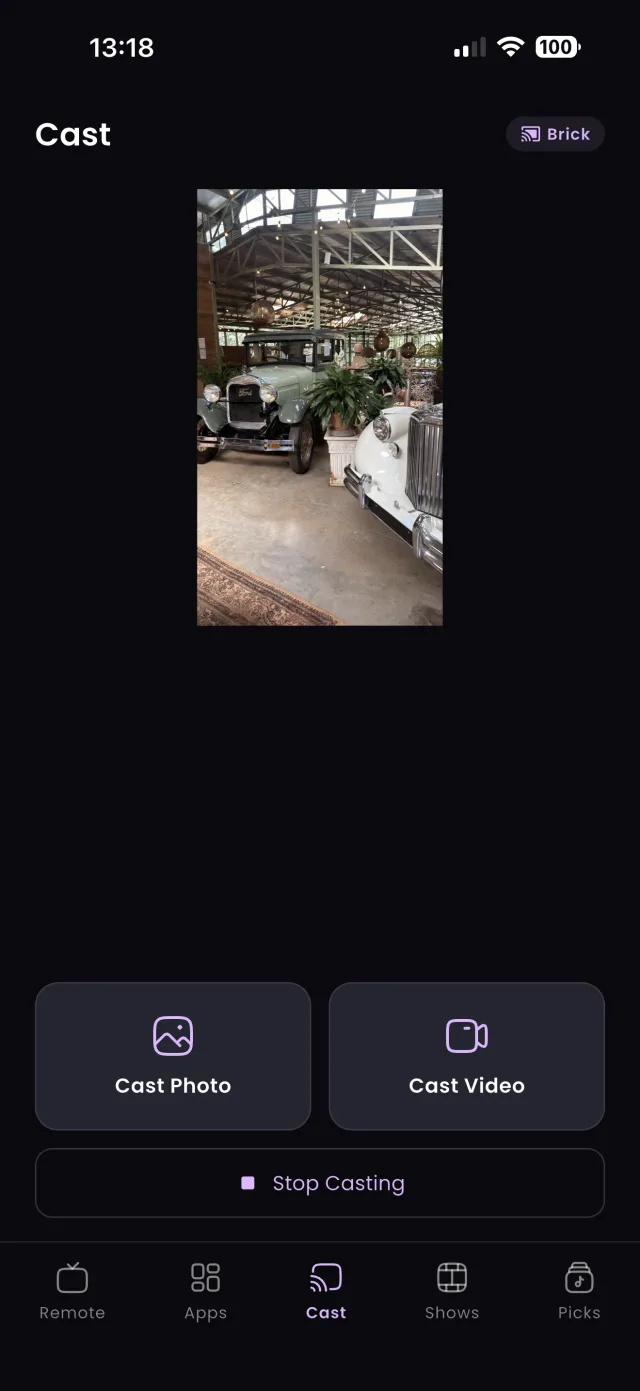
This is the option worth setting up, because it solves tonight's problem and every future one. TVGO is a free iPhone and Android app that connects to your TV, streaming box or cast-enabled device over your home Wi-Fi, for 50+ TV brands. There is no infrared hardware and no need to aim the phone at the TV.
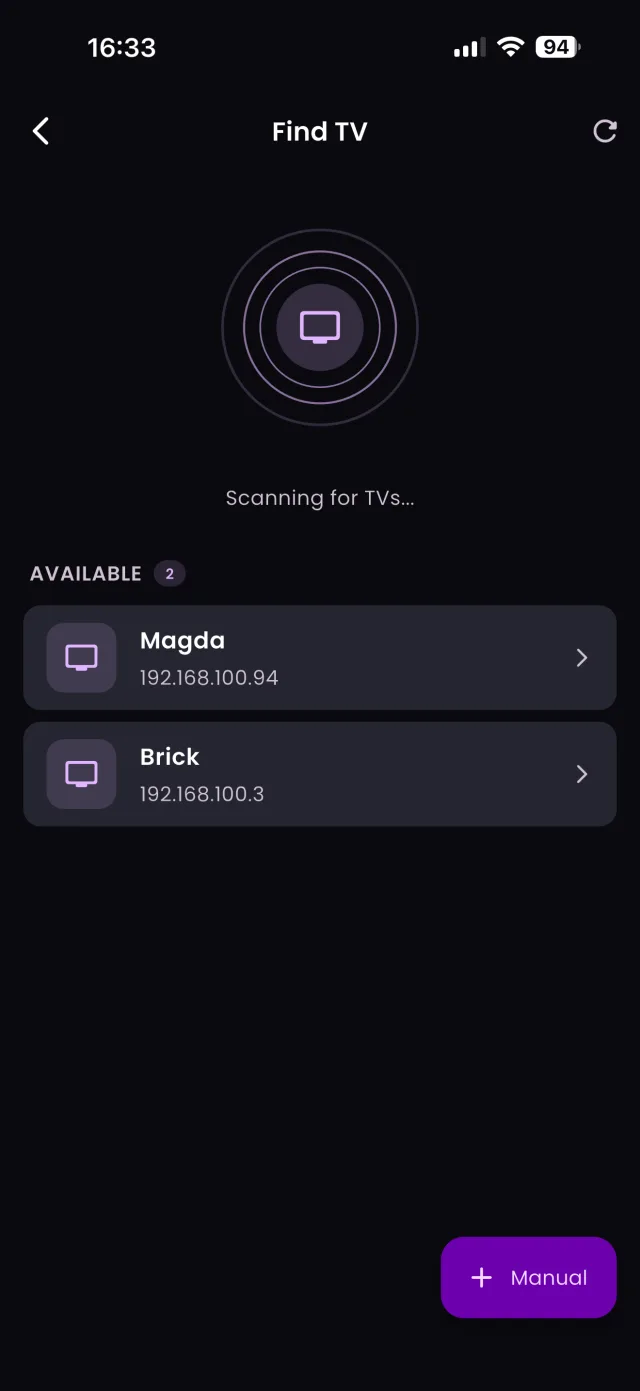
Open the app, let it scan your network, tap your TV and confirm the code or prompt on screen, and you have power, volume, channels and navigation on your phone, plus phone-keyboard search and one-tap streaming apps. Our step-by-step guide to using your phone as a TV remote takes about five minutes to follow. On a Samsung or LG TV, the first connection needs an on-screen approval; our Samsung and LG guide shows how to give it without the remote.
6. Order a Replacement Remote
If you still want something physical, order a replacement remote for your model, or a universal remote, from the TV maker or a retailer. Check the model number on the back of the TV first so you get one that matches.
It takes a few days to arrive and needs batteries, so set up one of the options above in the meantime. Many people find that once the phone works as the remote, the replacement ends up in a drawer.
FAQ
Can I turn my TV on without the remote?
Yes. Press the physical power button on the TV, usually on the bottom edge, back or side. A connected streaming box or console can also switch it on through HDMI-CEC.
Will a phone remote app work if I never set it up before losing the remote?
Yes. TVGO can be set up from scratch without the old remote. Samsung and LG TVs ask for a one-time approval, which you can give with a USB mouse or keyboard, or with LG's PIN option.
What if my TV is off when I try to connect TVGO?
Many Wi-Fi-connected TVs accept a power-on command from the network. Otherwise, press the TV's power button once, and TVGO handles the rest.