How to Set Up a TV Remote App on Android

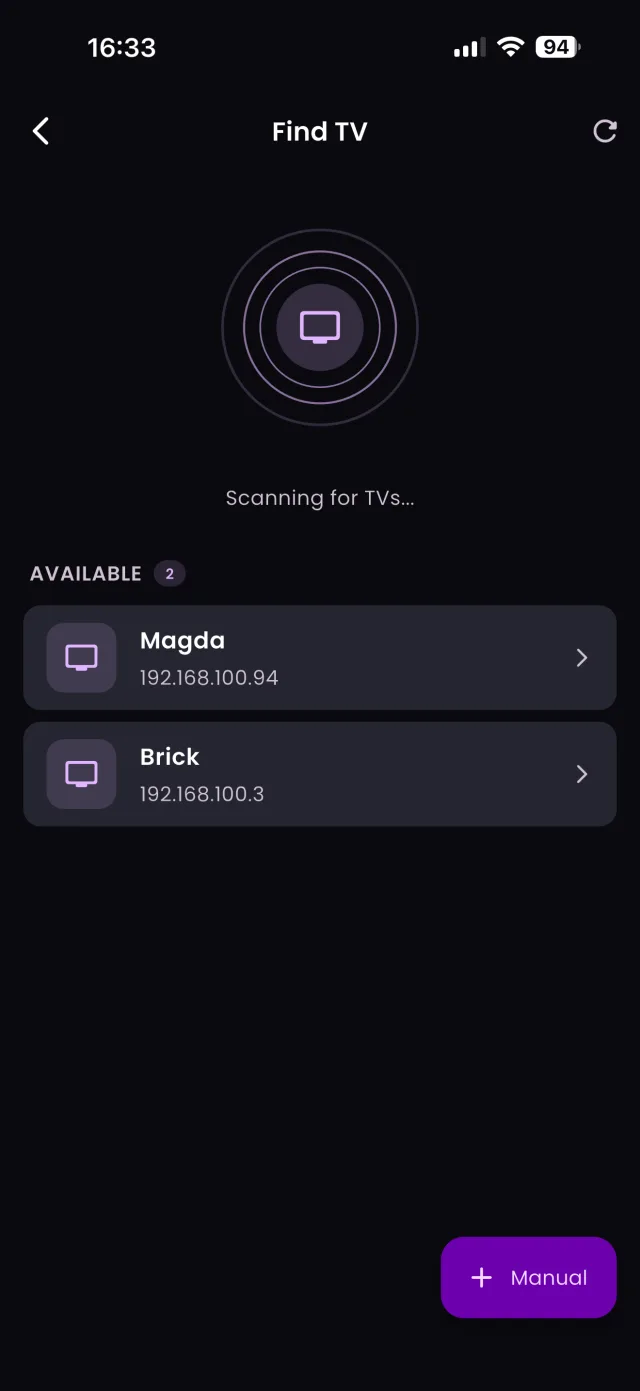
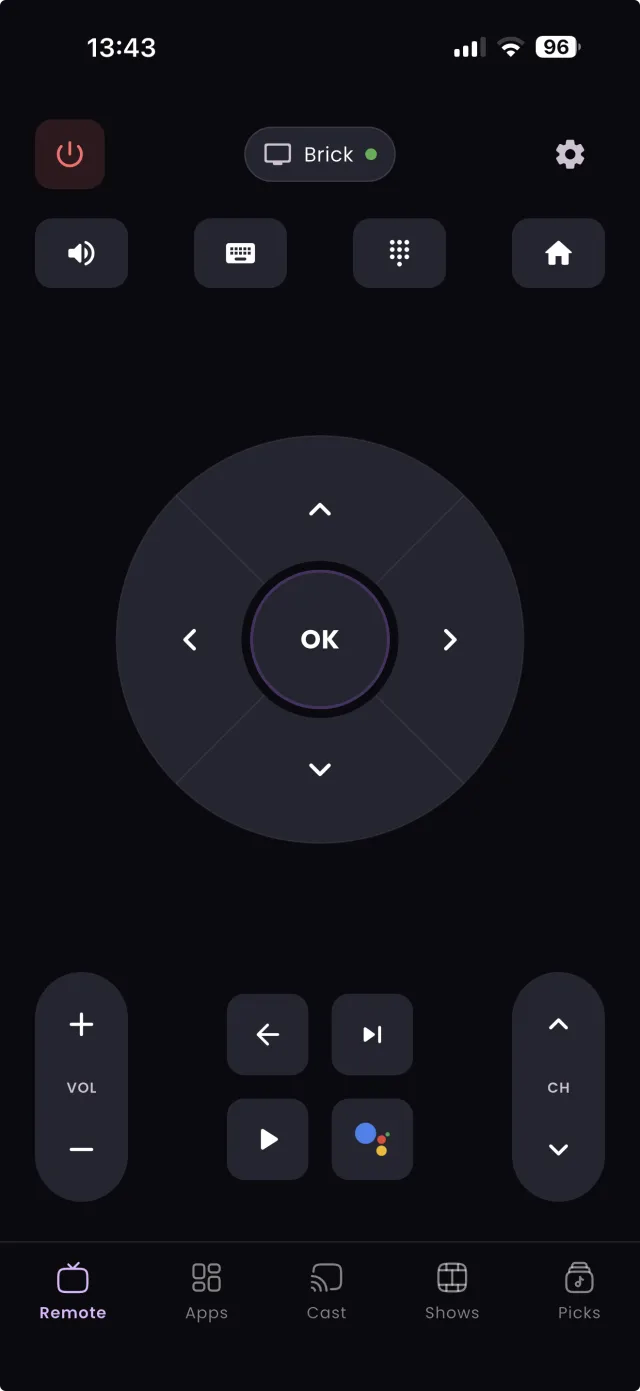
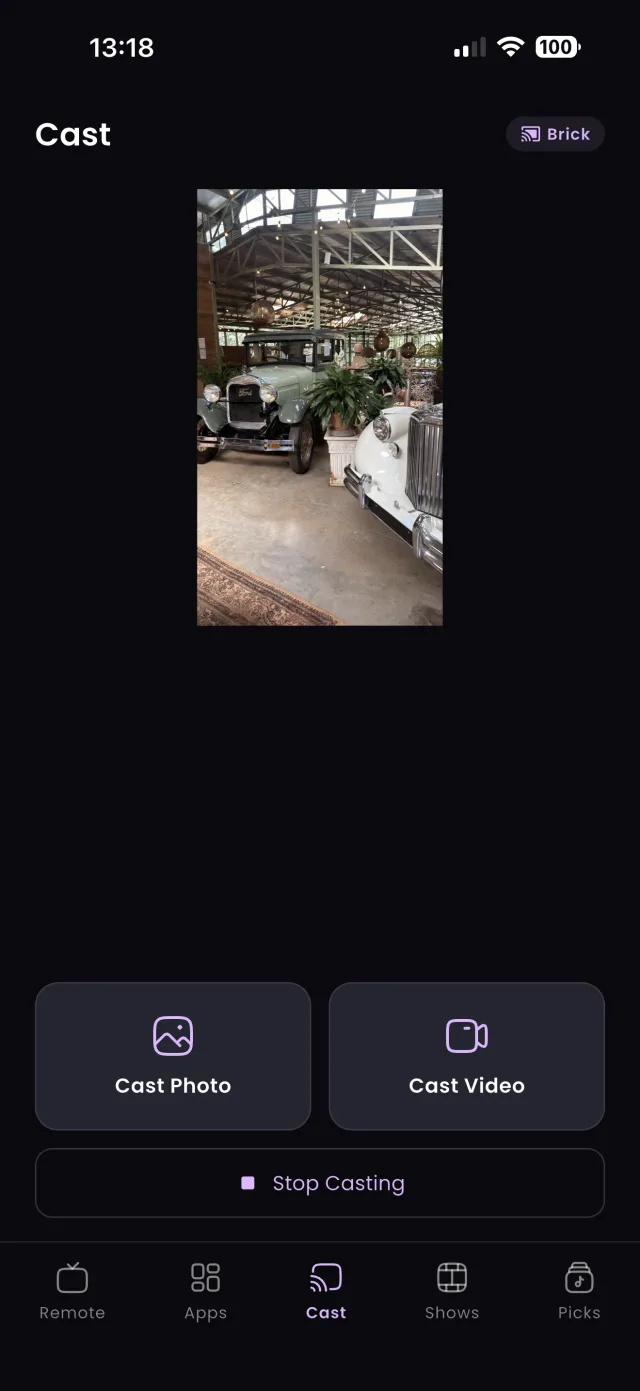
Step 1: TVGO scanning for TVs on Wi-FiTVGO remote screen ready to control the TVTVGO casting a photo to the TV

Your Android phone can replace your TV remote in minutes. Here is how to set up TVGO on Android and pair it with Samsung, LG, Sony, TCL, Hisense and more.

By Published Updated 3 min readGuide

TL;DR

Install TVGO from Google Play, connect your Android phone to the same Wi-Fi network and band as your TV, allow local network access, tap your TV in the scan and confirm the code or prompt on the TV screen.

Your Android phone can replace a lost or broken TV remote in a few minutes. This guide sets up TVGO, a free remote app on Google Play that works with Samsung, LG, Sony, TCL, Hisense and 50+ other TV brands over your home Wi-Fi. It covers the Android-specific parts of setup, such as installing from Google Play and allowing network access, the five pairing steps, and what to do if your TV is a Samsung or LG and the original remote is gone. If you use an iPhone instead, follow our iPhone setup guide; if your TV itself runs Android TV or Google TV, our Android TV guide covers the extra features on those TVs. For streaming and cable boxes, see the general guide to using your phone as a TV remote.
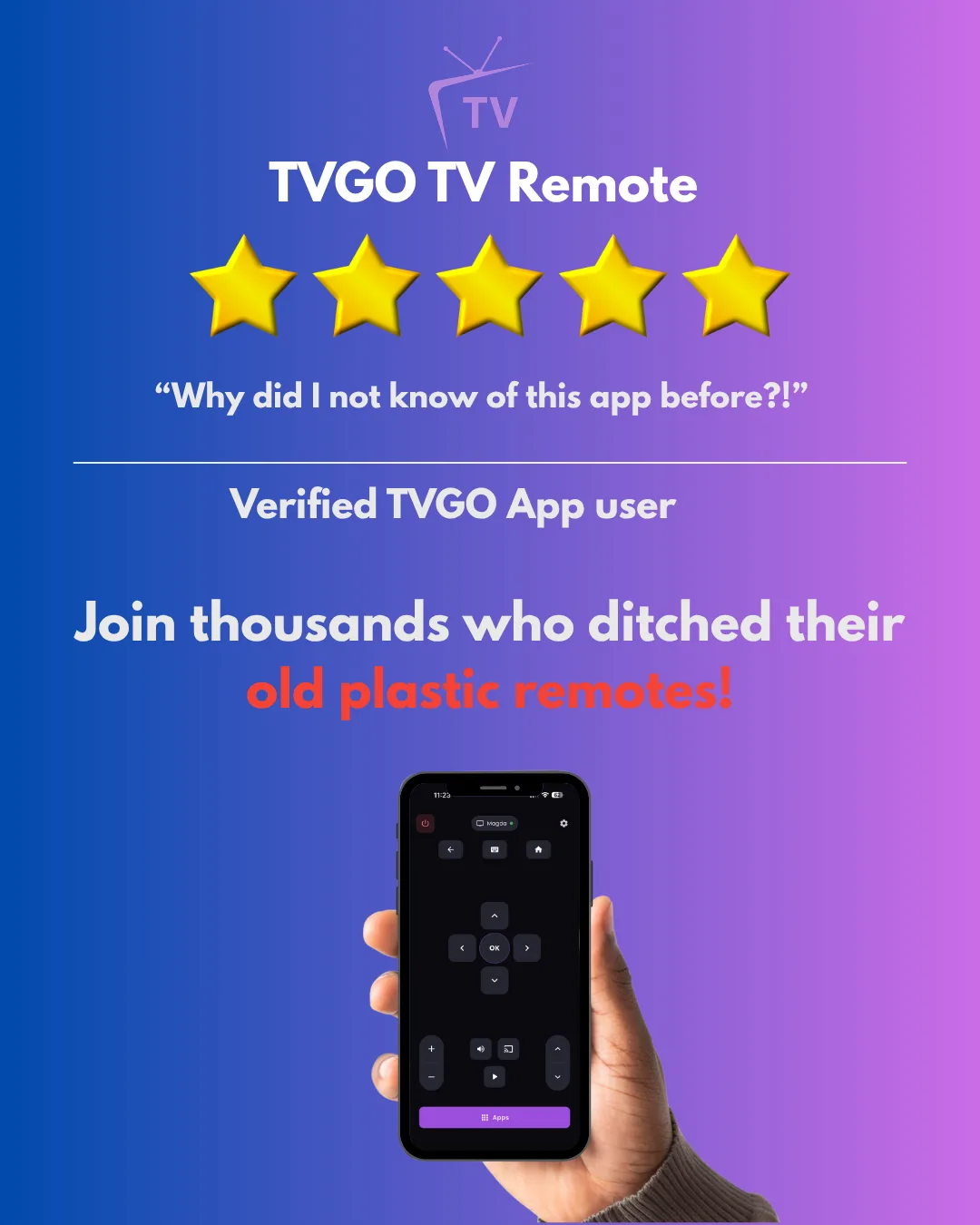
Promotional graphic with five gold stars, a user quote reading Why did I not know of this app before, and a hand holding a phone running the TVGO remote

Before You Start: Phone, TV and Network

You need three things: an Android phone, a smart TV or streaming box, and both of them on the same home Wi-Fi network. TVGO works on most Android phones and connects over Wi-Fi rather than infrared, so your phone does not need an IR blaster.

Check the network carefully, because it is where most setups go wrong. The phone and TV must be on the same network name, and on routers that broadcast separate 2.4GHz and 5GHz networks, the same band too. Turn off any VPN on the phone while you set up, since a VPN makes the phone look like it is on a different network. Finally, switch the TV fully on rather than leaving it in standby, so it can be found.

Set Up TVGO on Android in 5 Steps

  1. Install TVGO. Get it free from Google Play, then open it.
  2. Turn on the TV and connect it to Wi-Fi. Use the same network, and band, as your phone.
  3. Allow network access. When TVGO asks for permission to find devices on your local network, allow it. Without it, the app cannot see your TV.
  4. Let TVGO scan. The app lists every compatible TV and streaming box it finds. Tap the one you want to control.
  5. Confirm on the TV. Either type the code shown on the TV into the app, or accept the approval prompt on the TV screen, depending on the brand.

Once paired, your Android phone is the remote, and TVGO reconnects automatically next time.

Samsung or LG TV Without a Remote

Samsung and LG TVs confirm a new remote app with an on-screen prompt that you normally accept with the original remote. Without it, plug a USB mouse or keyboard into the TV to accept the prompt once, or on LG choose TVGO's PIN option. Our guide to connecting a remote app to Samsung or LG without the remote walks through each fix.

Getting More From TVGO on Android

With the TV paired, explore the rest of the app. Use your phone's keyboard, or voice search, to type into search boxes on the TV instead of picking letters with arrow keys. Pin your favourite streaming apps so Netflix or YouTube opens on the TV with one tap. If you have more than one TV, add them all and switch between them from the device menu.

TVGO also includes a live TV guide: see what is airing now and coming up, save titles, and set reminders so you are notified before they air. Everyone else at home can control the TV from their own phone too, so nobody has to fight over a single remote.

FAQ

Does TVGO work on Android tablets?

TVGO is built for Android phones. If your tablet can install it from Google Play and is on the same Wi-Fi as the TV, it connects the same way.

Can I use TVGO with mobile data instead of Wi-Fi?

No. The phone must be on the same Wi-Fi network as the TV, because that is how TVGO reaches it.

Guides

How to Set Up a TV Remote App on iPhone

Replace a lost or broken TV remote with your iPhone in a few minutes. Here is how to set up TVGO on iOS, allow local network access and pair with your TV.

· 3 min read

Guides

How to Set Up TVGO on Your Android TV

Get started with TVGO on an Android TV or Google TV in minutes: install the app, pair over Wi-Fi, then set up the touchpad, keyboard and Quick Launch.

· 3 min read