Your phone is already the device you never lose, so it makes sense to let it run the TV too. TVGO is an iPhone and Android app that turns your phone into a full universal remote for your smart TV, streaming box or network-connected cable box. Setup takes about five minutes, works entirely over your home Wi-Fi and needs no dongle, adapter or infrared hardware. This guide covers what you need, the five pairing steps, how the two kinds of pairing screens work, and how to add streaming and cable boxes once your TV is connected. For phone-specific steps, see the iPhone setup guide or the Android setup guide; if your TV runs Android TV or Google TV, the Android TV guide covers its extras.
What You Need Before You Start
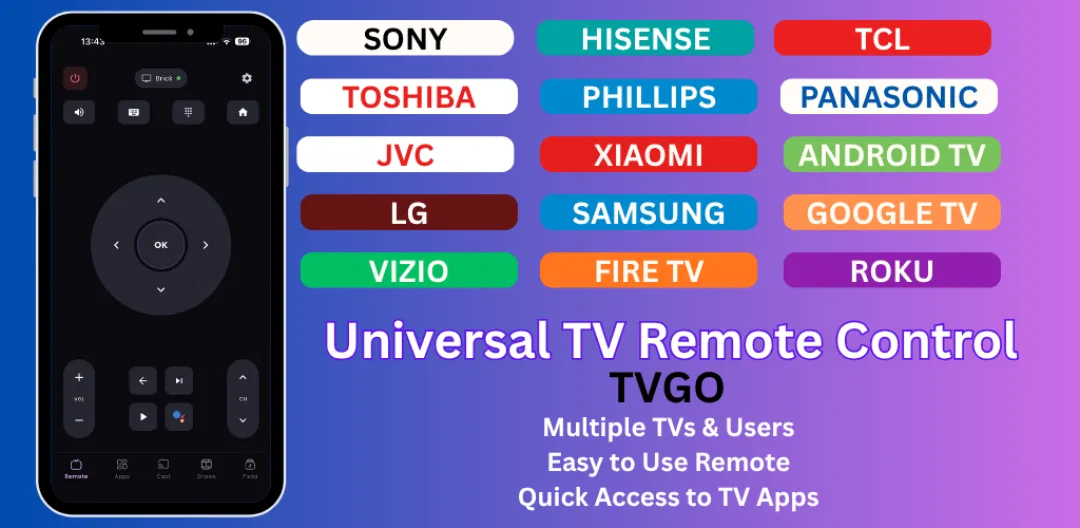
The list is short: your phone with TVGO installed, and a TV, streaming box or cast-enabled device that is connected to your home Wi-Fi. TVGO works with 50+ TV brands, including Samsung, LG, Sony, TCL and Hisense, so most smart TVs from the last several years qualify.
The one rule that matters is the network. Your phone and your TV must be on the same Wi-Fi network, because that is how TVGO finds the TV and sends it commands. A phone on mobile data, on a guest network or behind a VPN will not see the TV at all, so switch those off before you start. Make sure the TV is fully powered on, not in deep standby, so it shows up when the app scans. When the app asks for permission to use your Wi-Fi or local network, allow it; without that permission it cannot look for devices.
Pair TVGO With Your TV in 5 Steps
- Connect your phone to your home Wi-Fi, the same network as the TV. This is the step people most often skip.
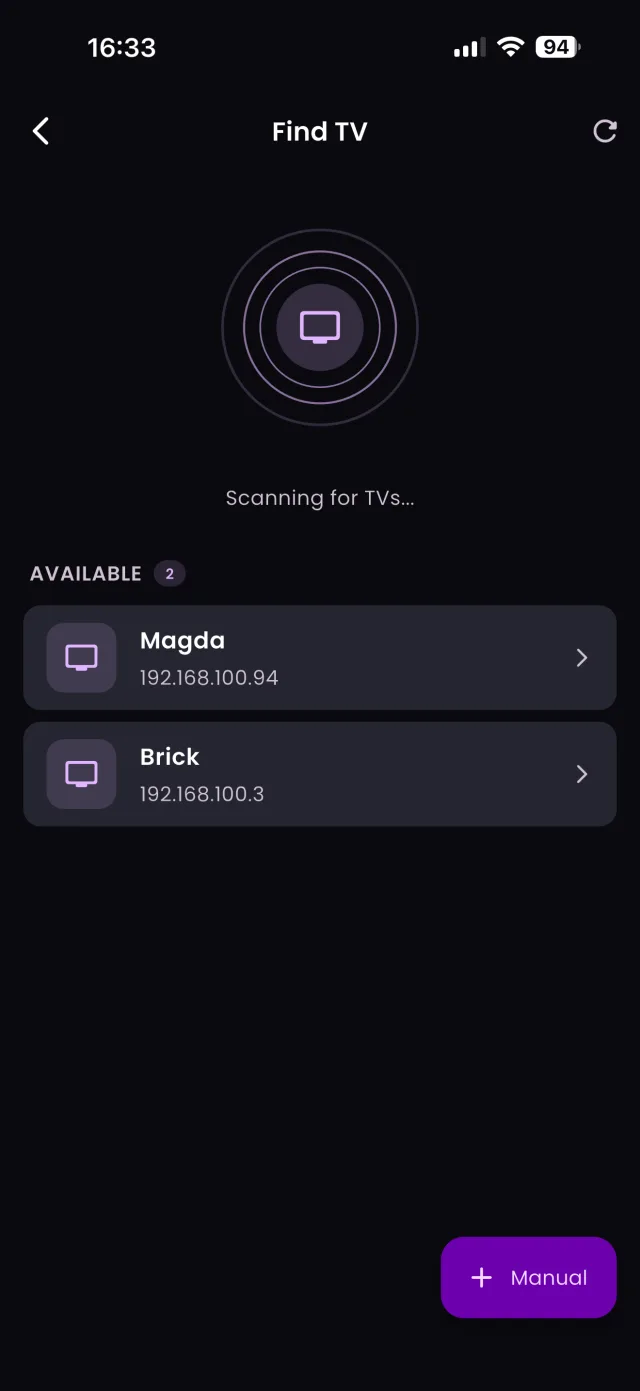
- Open TVGO and start the scan. The app searches your network and lists every compatible TV, streaming box and cast-enabled device it finds.
- Tap your TV in the list. If you have more than one, pick the one you are sitting in front of; you can add the others later.
- Confirm the connection on the TV. Depending on the brand, the TV shows either a short code or an approval prompt (see the next section).
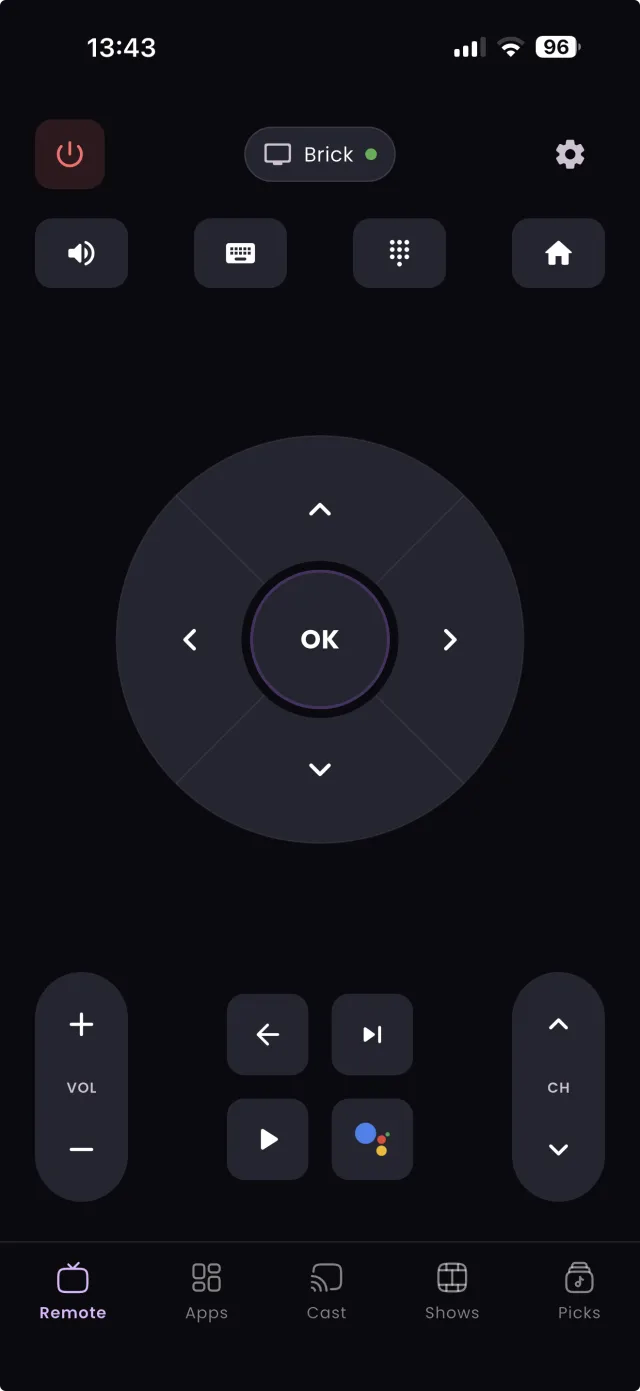
- Start using the remote. Power, volume, channels, navigation and playback are now on your phone screen.
Most people finish in under five minutes. TVGO remembers each TV it has paired with, so the next time you open the app it reconnects without repeating these steps.
Code Pairing vs On-Screen Approval
TVs confirm a new remote app in one of two ways, and which one you see depends on the TV's operating system.
Code pairing. A short code appears on the TV screen. Type it into TVGO and the connection is confirmed. Only someone who can see the TV can read the code, which is what keeps the pairing secure.
Approval prompt. The TV shows a message asking whether to allow the new remote. You accept it on the TV once, and TVGO is connected from then on. Samsung and LG TVs use this method.
The approval prompt has one catch: you normally answer it with the TV's own remote. If that remote is lost or broken, plug a USB mouse or keyboard into the TV's USB port and use it to accept the prompt. It is a one-time step, and our Samsung and LG guide walks through it in detail, including LG's PIN option.
Adding a Streaming Box or Cable Box
Once your TV works, add the rest of your setup from the same scan. Streaming players such as Fire TV and Roku-style sticks and Chromecast-style devices are network devices by design, so they show up in the list like a TV does. Pick the box and approve any confirmation that appears on screen.
A cable or satellite box can be added if it is connected to your network, either by Ethernet to the router or over Wi-Fi. Check the box's settings for a network status screen first: if it shows no connection, connect it to the router and scan again. Boxes with no network connection at all cannot be controlled over Wi-Fi.
If a streaming stick will not appear, it has often joined an old saved network. Open the stick's network settings, confirm it matches your phone's Wi-Fi, then unplug it for ten seconds and rescan. Every device you add appears in TVGO's device switcher, one tap away.
Why Wi-Fi Beats an Infrared Remote
Many remotes, and some remote apps, use infrared: the same technology as a classic clicker. Infrared needs special hardware in the phone and a clear line of sight to the TV, and plenty of modern streaming boxes do not have an infrared receiver at all.
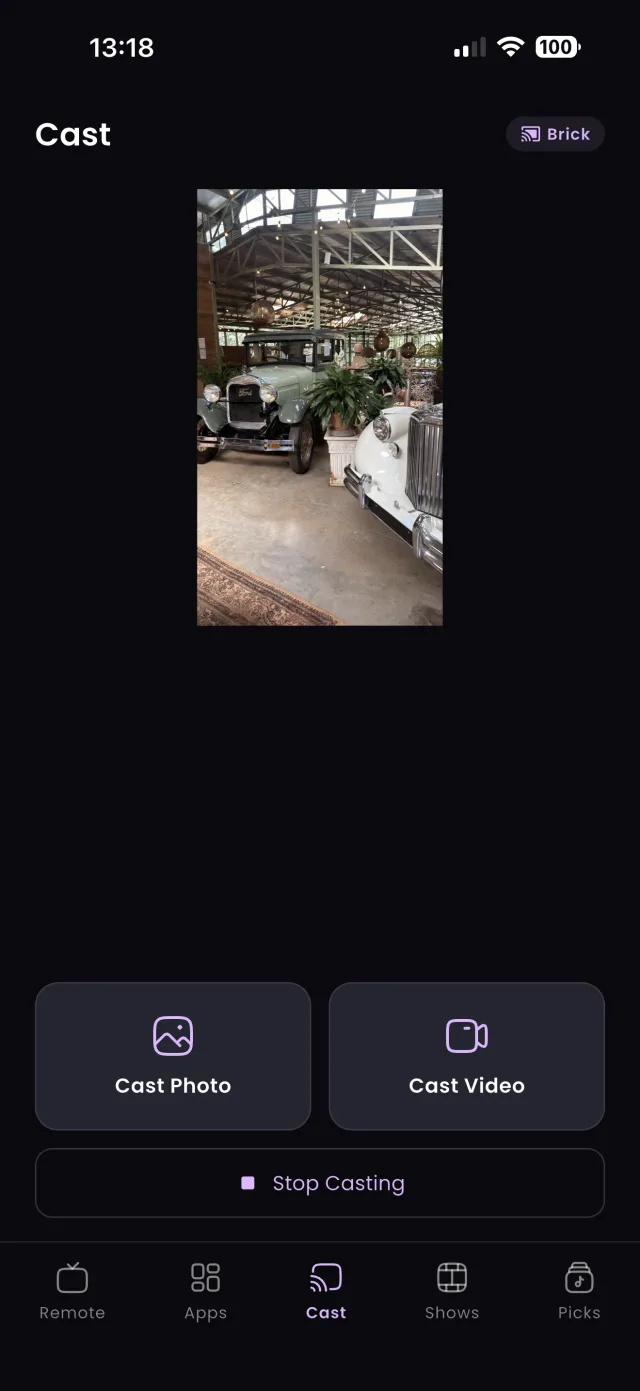
TVGO skips all of that by talking to your devices over Wi-Fi. That means it works on any recent iPhone or Android phone, with no infrared blaster required. You do not have to point the phone at the TV, so you can pause a movie from the kitchen or turn the volume down from another room. It also means TVGO can do things a button remote cannot, such as typing searches with your phone's keyboard, voice search, and opening Netflix, YouTube or Disney+ on the TV with one tap. For more on what TVGO adds beyond the remote, including its live TV guide and reminders, see our TVGO app review.
FAQ
Will TVGO work if my phone and TV are on different Wi-Fi bands?
Usually, as long as both are on the same home network. Some routers keep the 2.4GHz and 5GHz bands apart; if the scan comes up empty, put the phone and TV on the same network name and band, then scan again. Our connection troubleshooting guide covers the other common causes.
Does TVGO work with a TV that has no internet connection?
No. The TV has to be connected to your home Wi-Fi or wired network, because that is the only way TVGO can reach it.
Is TVGO free to download?
Yes. TVGO is free to download on the App Store for iPhone and on Google Play for Android.