Android TV and Google TV devices pair especially smoothly with TVGO, and they unlock the app's most useful extras: a touchpad for menus, your phone keyboard for search, and Quick Launch for opening streaming apps in one tap. Setup takes less than five minutes. This guide covers what you need, the pairing steps for Android TV specifically, and how to set up the features that make TVGO faster than the remote that came with the TV. For any other brand of TV, the general guide to using your phone as a TV remote applies.
What You'll Need
- An Android phone running Android 8.0 or later, or an iPhone
- An Android TV or Google TV device, either a TV with it built in or a streaming box running it
- The TVGO app, free on Google Play and the App Store
- Your phone and TV on the same Wi-Fi network
That last point matters most. TVGO finds the TV by scanning your home network, so a phone on mobile data, a guest network or a VPN will not see it. Switch the TV fully on before you start, and if your router has separate 2.4GHz and 5GHz networks, put both devices on the same one.
Pair Your Phone With the Android TV
- Install TVGO from Google Play or the App Store and open it. Allow access to your local network when asked.
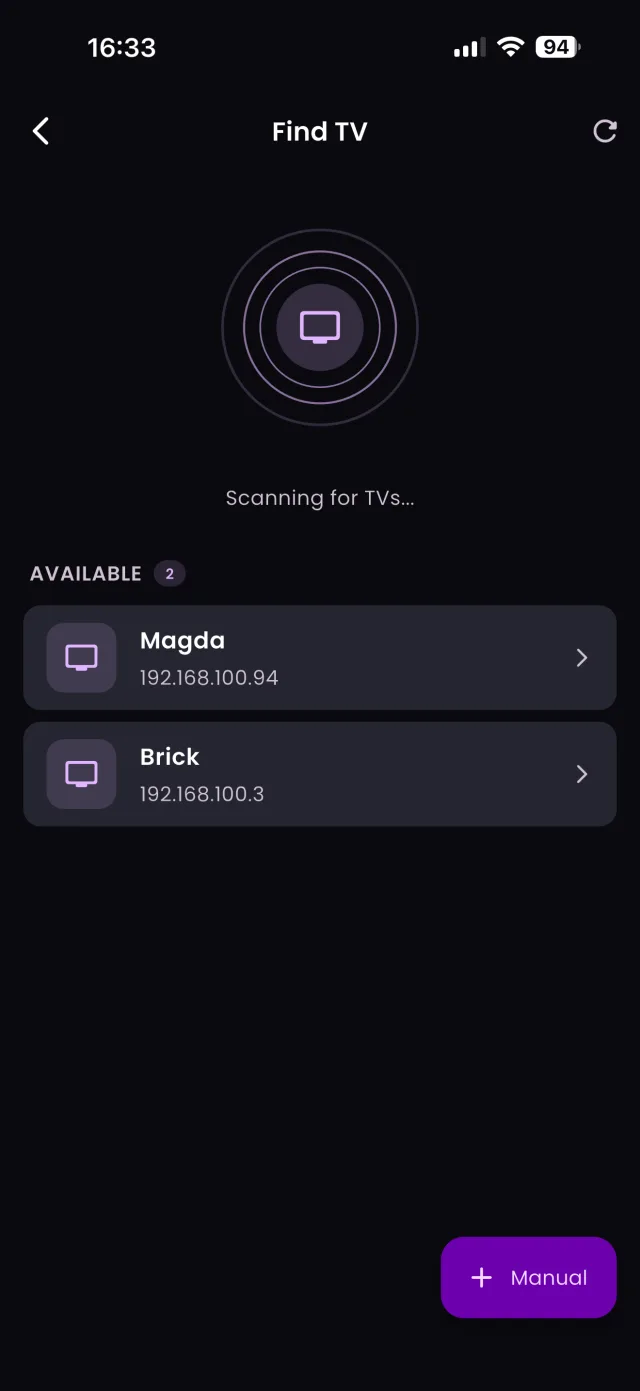
- Make sure the phone and TV are on the same Wi-Fi. TVGO then scans automatically for nearby Android TV devices.
- Tap your TV when it appears in the list.
- Confirm the pairing code. A code appears on the TV screen; enter it in TVGO to confirm the connection.
That is it. TVGO remembers the TV, so it reconnects automatically the next time you open the app on the same network. If the TV does not appear, check the network first; our troubleshooting guide covers the common causes.
Use the Touchpad and Keyboard
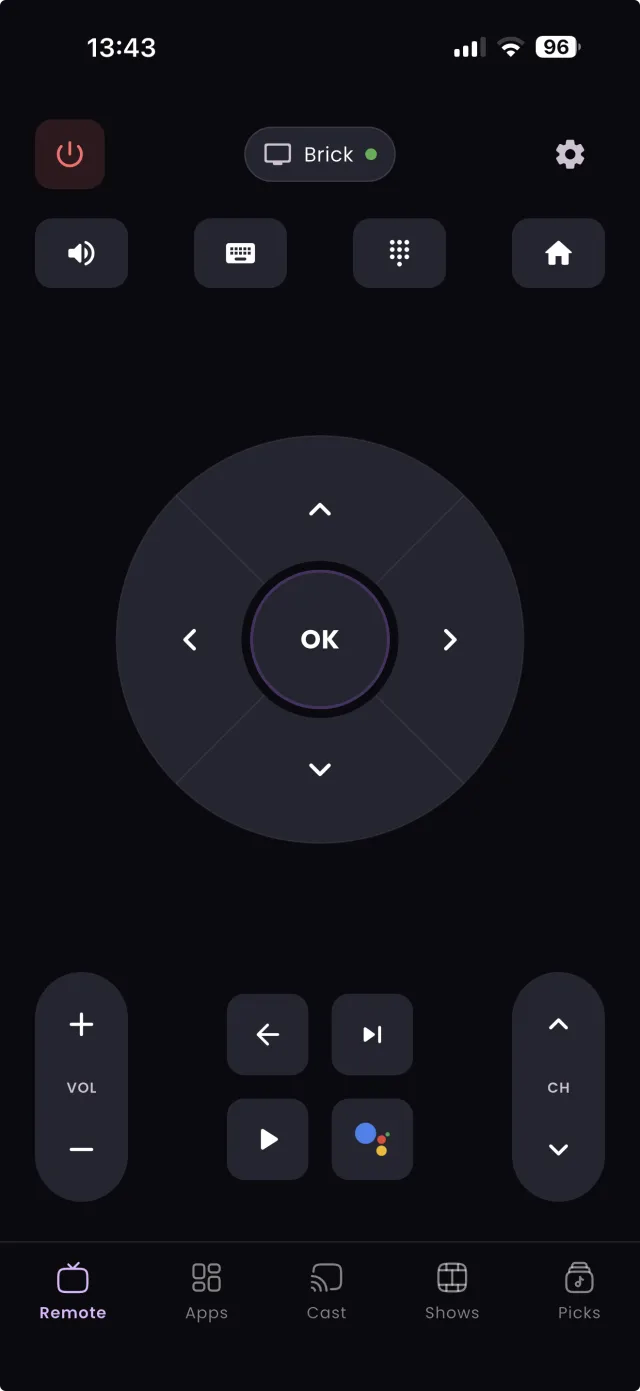
Once connected, you will see TVGO's remote. Swipe the touchpad to move around menus and tap it to select, the same way you would use the directional pad on a physical remote but with less clicking. The on-screen buttons handle Home, Back and Volume.
The biggest upgrade is typing. When a search box is open on the TV, open the keyboard in TVGO and type with your phone's keyboard instead of picking letters one at a time with arrow keys. Searching for a show, entering a Wi-Fi password or signing into a streaming app goes from minutes to seconds. You can also use voice search: say the title and TVGO types it in for you.
Set Up Quick Launch
Quick Launch puts your favourite TV apps one tap away. Open the Quick Launch section in TVGO, browse the apps installed on your Android TV, and tap the pin icon next to the ones you use most, such as Netflix, YouTube or Disney+. Drag the pinned apps into the order you want.
From then on, tapping an app in Quick Launch opens it directly on the TV, with no scrolling through the home screen or app drawer. Our list of the best Android TV apps to pin has ideas for what to add.
Add Family and Other TVs
If more than one person in your home uses the TV, enable Family Sharing so everyone can control it from their own phone instead of passing one remote around.
If you have more than one Android TV or Google TV device, add them all. Each paired TV appears in TVGO's device switcher, and moving between the living room and the bedroom TV takes a tap. Our guide to controlling multiple TVs from one phone explains the switcher and a few handy setups.
FAQ
Does TVGO work with Google TV as well as Android TV?
Yes. TVGO works with Android TV and Google TV devices, including TVs with them built in and streaming boxes that run them.
Can I use TVGO on an iPhone to control an Android TV?
Yes. TVGO is available on iPhone and Android, and both connect to Android TV the same way over Wi-Fi.
Do I need the original Android TV remote to pair TVGO?
No. Android TV pairing uses a code shown on the TV, which you enter on your phone, so the original remote is not needed.