How to Set Up a TV Remote App on iPhone

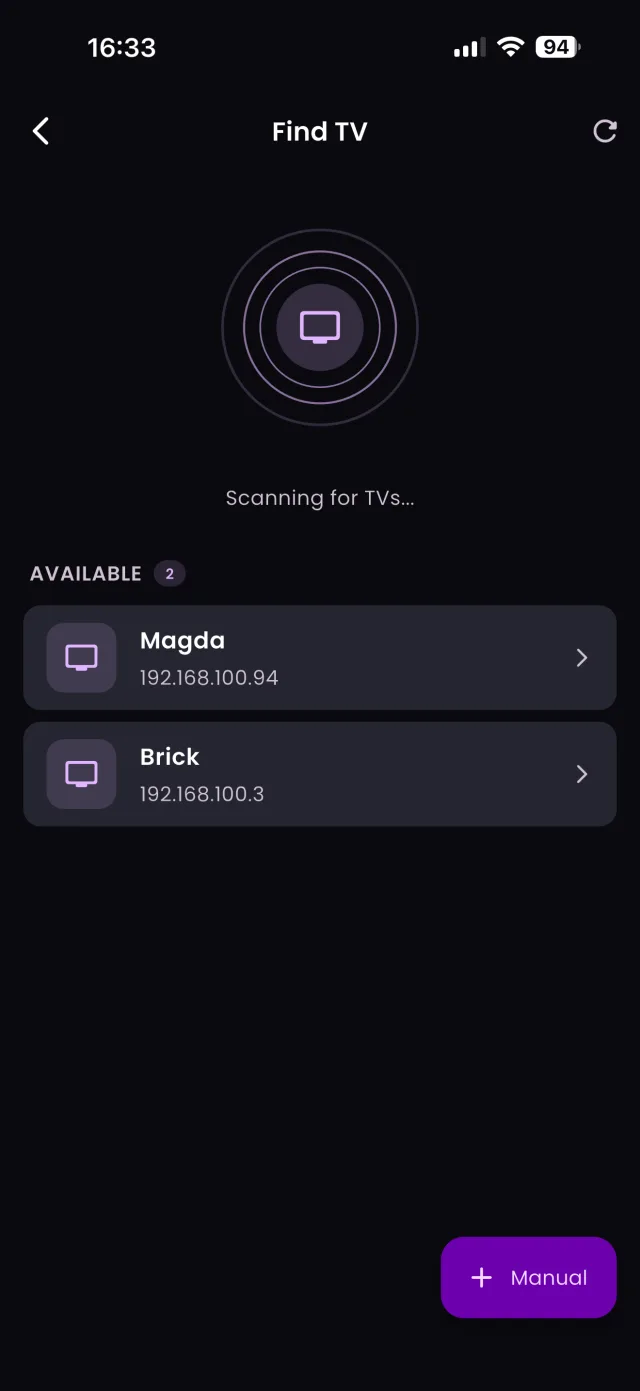
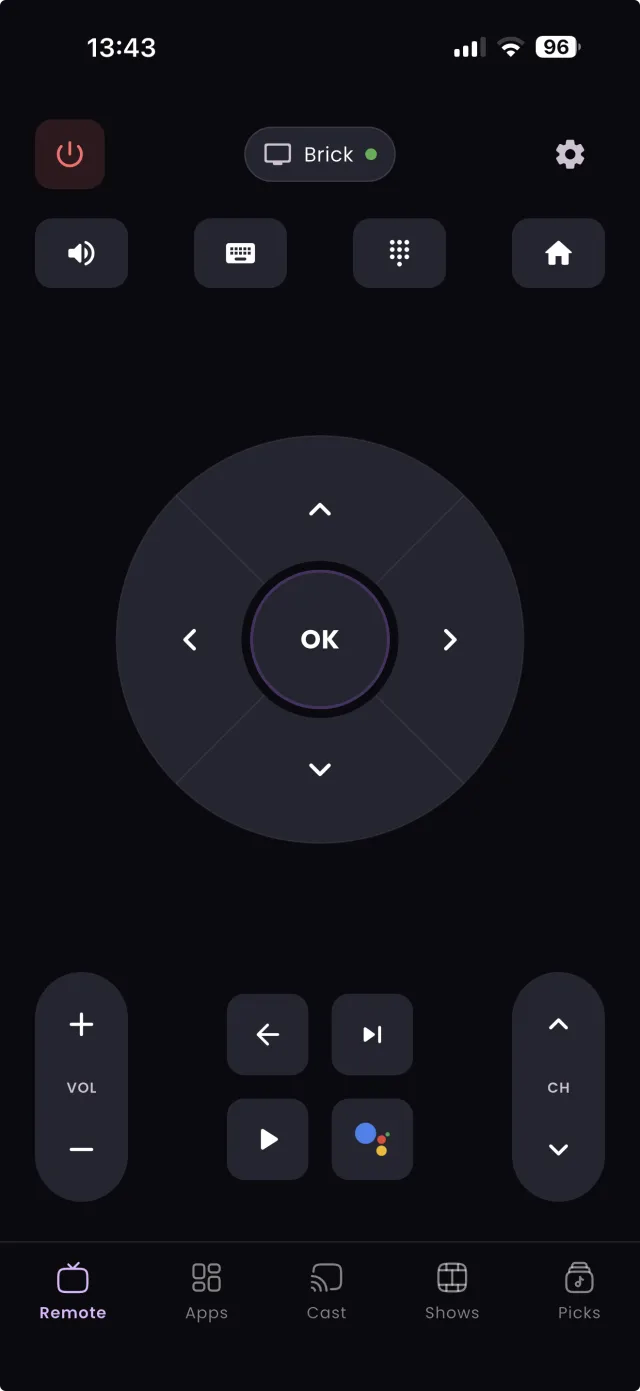
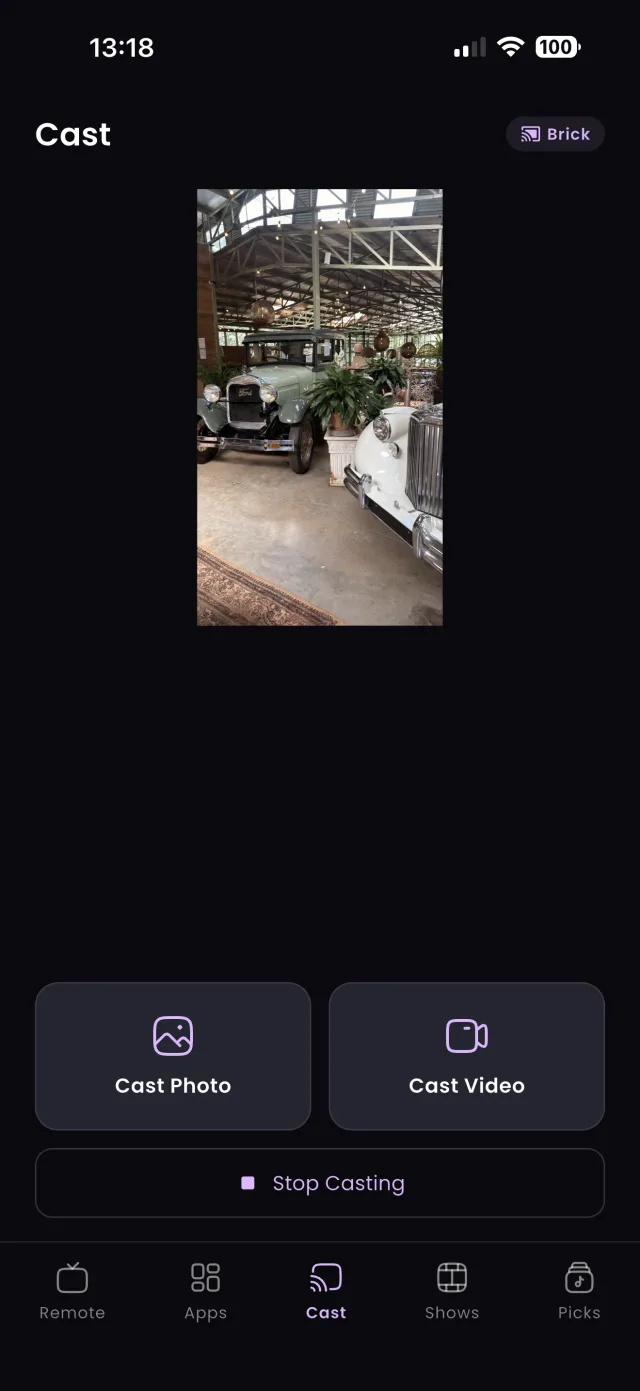
Step 1: TVGO scanning for TVs on Wi-FiTVGO remote screen ready to control the TVTVGO casting a photo to the TV

Replace a lost or broken TV remote with your iPhone in a few minutes. Here is how to set up TVGO on iOS, allow local network access and pair with your TV.

By Published Updated 3 min readGuide

TL;DR

Install TVGO from the App Store, put your iPhone on the same Wi-Fi network and band as your TV, tap Allow when iOS asks about local network access, tap your TV in the scan and confirm the code or prompt on the TV.

Your iPhone can replace a lost or broken TV remote in a few minutes. This guide sets up TVGO, a free remote app on the App Store that works with Samsung, LG, Sony, TCL, Hisense and 50+ other TV brands over your home Wi-Fi. It covers the iPhone-specific parts, especially the local network permission iOS asks for, the five pairing steps, the Samsung and LG approval screen, and the Siri and Shortcuts features that only iPhone users get. On Android? Use our Android setup guide instead. For the brand-by-brand pairing screens and adding streaming or cable boxes, see the general guide to using your phone as a TV remote.
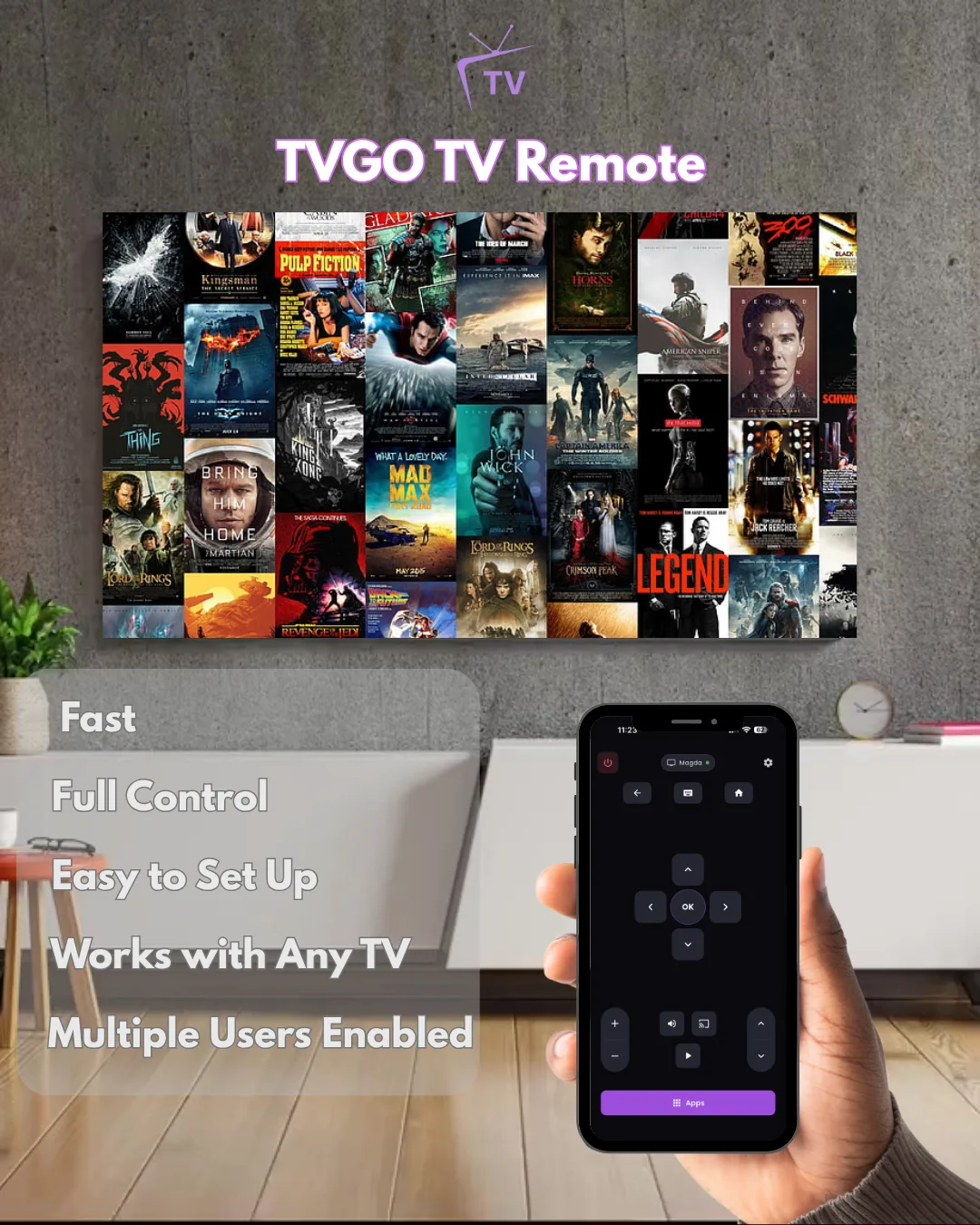
A hand holding a phone running the TVGO remote in front of a TV showing a wall of movie posters, with the labels Fast, Full Control, Easy to Set Up, Works with Any TV and Multiple Users Enabled

Before You Start: iPhone, TV and Network

You need an iPhone running a recent version of iOS, a smart TV or streaming box, and both of them on the same home Wi-Fi network. TVGO connects over Wi-Fi, so there is nothing to plug in and no need to point the phone at the TV.

The network is where most setups go wrong. The iPhone and TV must be on the same network name and, on routers that broadcast separate 2.4GHz and 5GHz networks, the same band. If you use a VPN on your iPhone, turn it off while you pair; a VPN makes the phone appear to be on a different network, so TVGO cannot find the TV. Switch the TV fully on, not just to standby, before you start the scan.

Set Up TVGO on iPhone in 5 Steps

  1. Install TVGO. Download it free from the App Store, then open it.
  2. Turn on the TV and connect it to Wi-Fi. Use the same network, and band, as your iPhone.
  3. Tap Allow for local network access. The first time you open TVGO, iOS asks whether it can find devices on your local network. This permission is what lets the app discover your TV.
  4. Let TVGO scan. Compatible TVs and streaming boxes appear in a list. Tap the one you want to control.
  5. Confirm on the TV. Type the code shown on the TV into the app, or accept the approval prompt on screen, depending on the brand.

Once paired, your iPhone works as a full TV remote, and TVGO reconnects automatically next time.

If You Tapped "Don't Allow" by Mistake

If you declined the local network prompt, TVGO's scan will come up empty even when everything else is right, and iOS will not ask again on its own. Open the iPhone Settings app, scroll down to TVGO, and switch Local Network on. Then return to TVGO and scan again.

The same applies if the scan stops working after an iOS update or after you reinstall the app: check that Local Network is still switched on for TVGO before trying anything else. If it is on and the TV still does not appear, work through our connection troubleshooting guide. It is the single most common reason an iPhone cannot see a TV that a different phone finds without trouble.

Siri, Shortcuts and the Action Button

TVGO goes further on iPhone with Siri, Shortcuts, Spotlight and the Action Button. Once your TV is paired, you can say things like "Hey Siri, TVGO volume up," "TVGO pause" or "TVGO open Netflix on TV" without opening the app.

You can also use TVGO from Shortcuts and Spotlight search, and on iPhone models with an Action Button, set it up so a single press runs a TVGO command. Combined with the phone keyboard for typing searches and one-tap launch for streaming apps, this makes the iPhone noticeably faster to use than a button remote.

FAQ

Does TVGO work on iPad?

TVGO is built for iPhone. If your iPad can install it from the App Store and is on the same Wi-Fi as the TV, it connects the same way.

Which Siri commands work with TVGO?

Examples include "Hey Siri, turn on the TV," "TVGO volume up," "TVGO mute the TV," "TVGO pause," "TVGO open Netflix on TV" and "TVGO go to TV home."

Is TVGO free on iPhone?

Yes. TVGO is free to download from the App Store.

Guides

How to Set Up a TV Remote App on Android

Your Android phone can replace your TV remote in minutes. Here is how to set up TVGO on Android and pair it with Samsung, LG, Sony, TCL, Hisense and more.

· 3 min read