How to Connect a Remote App to a Samsung or LG TV Without the Remote

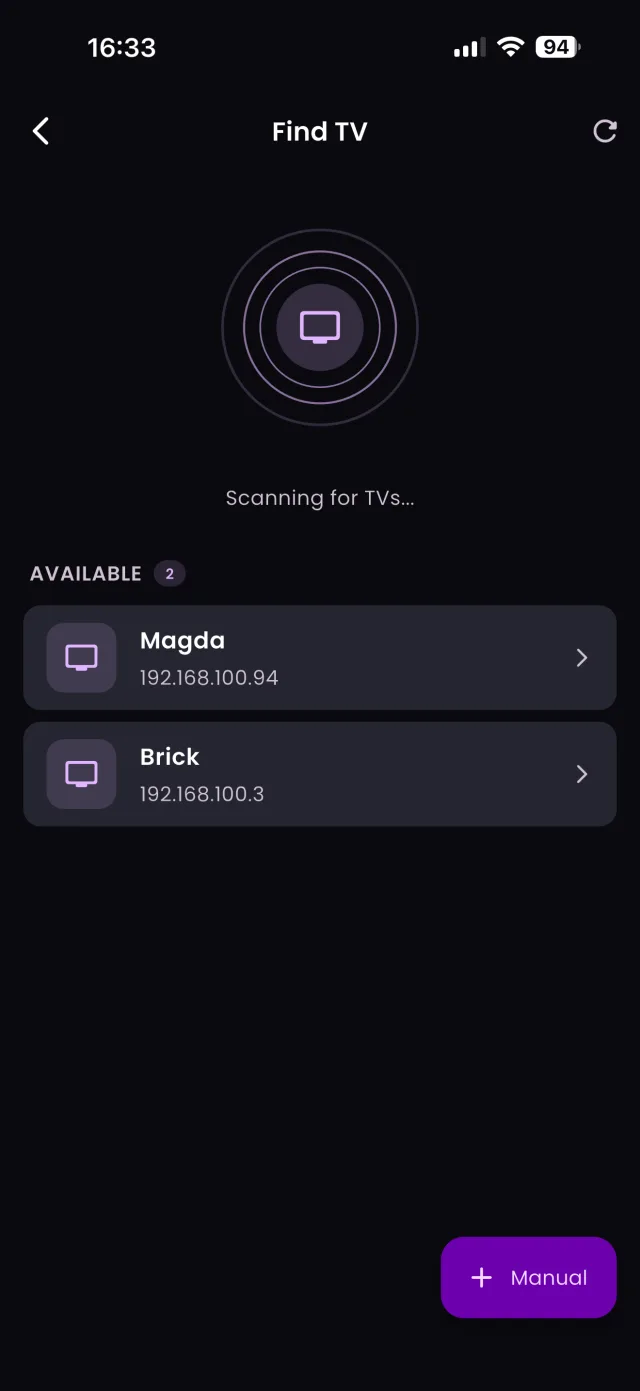
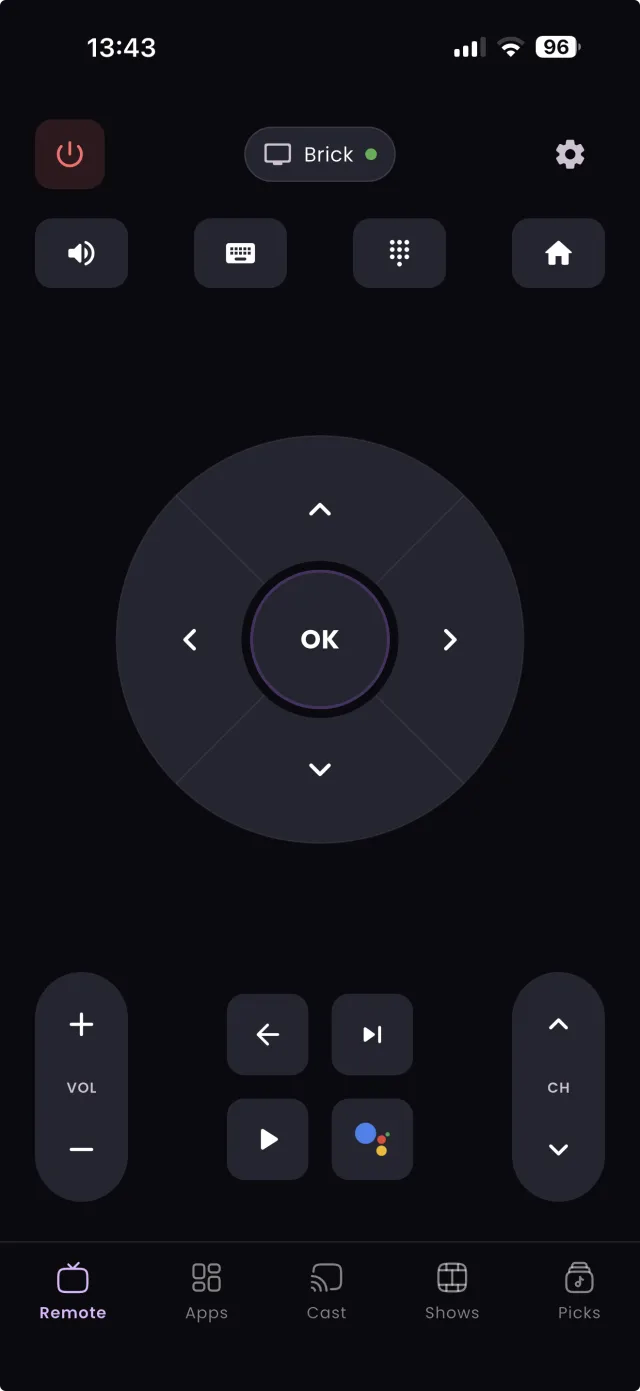
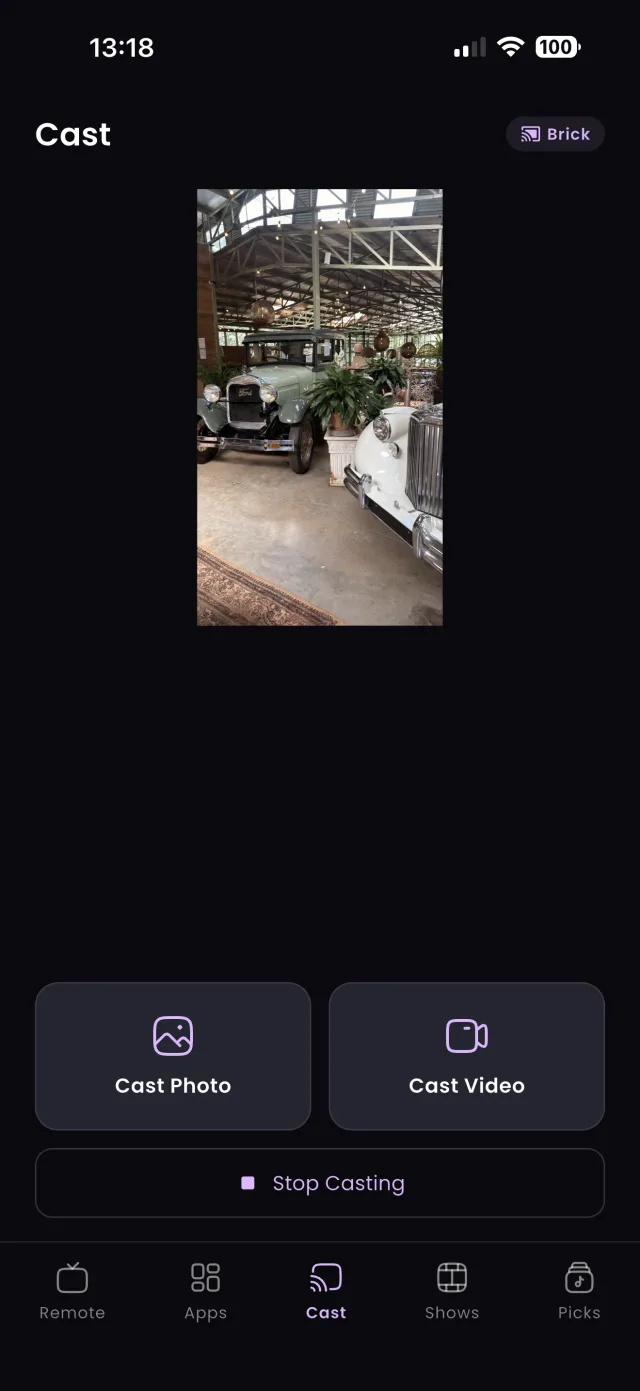
Step 1: TVGO scanning for TVs on Wi-FiTVGO remote screen ready to control the TVTVGO casting a photo to the TV

Samsung and LG TVs ask you to approve a remote app using the very remote you no longer have. Here is why that happens and the workarounds that get you connected.

By Published Updated 3 min readGuide

TL;DR

Samsung and LG TVs require you to approve a new remote app on the TV screen. Without the original remote, plug a USB mouse or keyboard into the TV and use it to accept the prompt once, or on LG choose TVGO's PIN option instead.

You download a remote app to replace a lost or broken remote, the app finds your Samsung or LG TV, and then nothing happens. The TV is waiting for you to approve the connection on screen, using the remote you no longer have. This guide explains why Samsung and LG work this way, and gives you three ways past the approval screen: a USB keyboard, a USB mouse, or, on LG, a PIN you enter on your phone. It assumes TVGO has already found your TV; if your TV is not showing up at all, start with our connection troubleshooting guide.
A hand pointing a black TV remote at a smart TV showing a streaming home screen

Why Samsung and LG Ask for Approval

The first time any remote app connects, a Samsung or LG TV shows an on-screen prompt asking you to allow it. This is a security feature of the TVs' operating systems, Tizen on Samsung and webOS on LG: it stops anyone on your Wi-Fi from taking control of your TV without your say-so.

The catch is obvious. You normally accept that prompt with the TV's own remote, so if the remote is lost or broken, you are stuck in a loop: you need a remote to set up the app that is supposed to replace the remote. This is not a bug in TVGO, and it affects every third-party remote app the same way. The good news is that it only has to be done once per TV. After the TV approves TVGO, it remembers that approval, and the app connects without asking again.

Fix 1: Use a USB Keyboard

Samsung and LG smart TVs recognise a standard USB keyboard. Plug one into a USB port on the back or side of the TV, then use the keyboard to accept the approval prompt.

  1. Start the pairing in TVGO so the prompt appears on the TV.
  2. Plug the USB keyboard into the TV.
  3. Use the arrow keys to highlight Allow or Accept, then press Enter.
  4. Unplug the keyboard. You will not need it again for this TV.

Any basic wired keyboard works, including an old one from a drawer. If the ports are hard to reach behind a wall-mounted TV, a short USB extension cable makes this much easier.
Fix 2: Use a USB Mouse

A USB mouse works just as well, and both Samsung and LG TVs show a pointer you can click with once it is plugged in.

  1. Start the pairing in TVGO so the prompt appears on the TV.
  2. Plug the USB mouse into the TV and move it until a pointer appears.
  3. Click Allow or Accept on the prompt.
  4. Unplug the mouse once TVGO is connected.

Give the mouse a flat, smooth surface to track on, such as a table, a hardback book or a magazine, since it needs one to move the pointer reliably.

Fix 3 (LG Only): Use the PIN Option

LG TVs offer an easier route that many people miss. When TVGO connects to an LG TV, it gives you two options: accept the prompt on the TV screen, or use a PIN.

Without a remote, choose PIN. The TV displays a PIN, you type it into TVGO on your phone, and you are connected. No keyboard, mouse or USB port is needed, which makes this the quickest fix if you have an LG TV and no remote.

After You're Connected

Once the TV has approved TVGO, the app takes over completely. You can change channels, adjust the volume, navigate menus, type searches with your phone keyboard and open streaming apps with one tap, all from your phone, without ever needing the physical remote again.

TVGO remembers the TV, so it reconnects automatically the next time you open the app on the same Wi-Fi network. If you add a second Samsung or LG TV, it will ask for its own approval the first time, and the same fixes apply.

FAQ

Does a Bluetooth keyboard or mouse work instead of USB?

A USB keyboard or mouse is the reliable option, because connecting a Bluetooth device to the TV usually needs the remote in the first place.

Can I turn my Samsung or LG TV on without the remote to start pairing?

Yes. Use the physical power button on the TV, usually on the bottom edge or the back of the panel, then start the pairing in TVGO.